Reach another computer. Or be the one reached.
RemoteX is a remote desktop app for the Mac that works in both directions. Connect out to a machine across the room or across the world — and turn this Mac into one that others can connect to, from the same window.

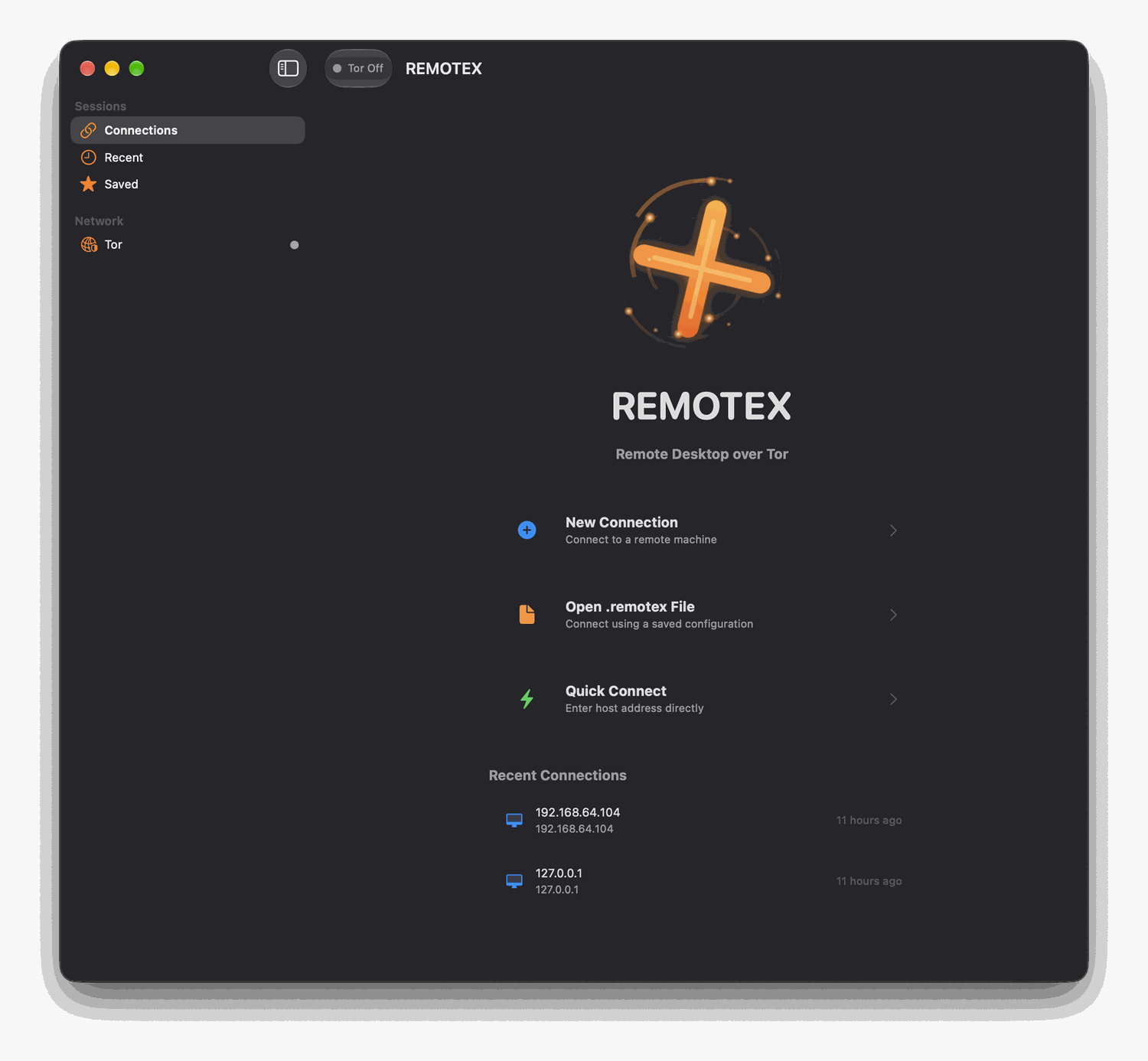
Most tools give you a viewer and sell you the host.
RemoteX puts both in one window — and leaves the second one switched off until you ask for it.
Connect to anything that speaks RDP
Windows PCs and servers, Linux machines running xrdp, and other Macs running RemoteX. Type an address, or keep it in the sidebar.
- Saved connections, with credentials in the Keychain
- Shared clipboard, in both directions
- Direct, Tor, or a saved
.remotexfile - Several sessions open at once
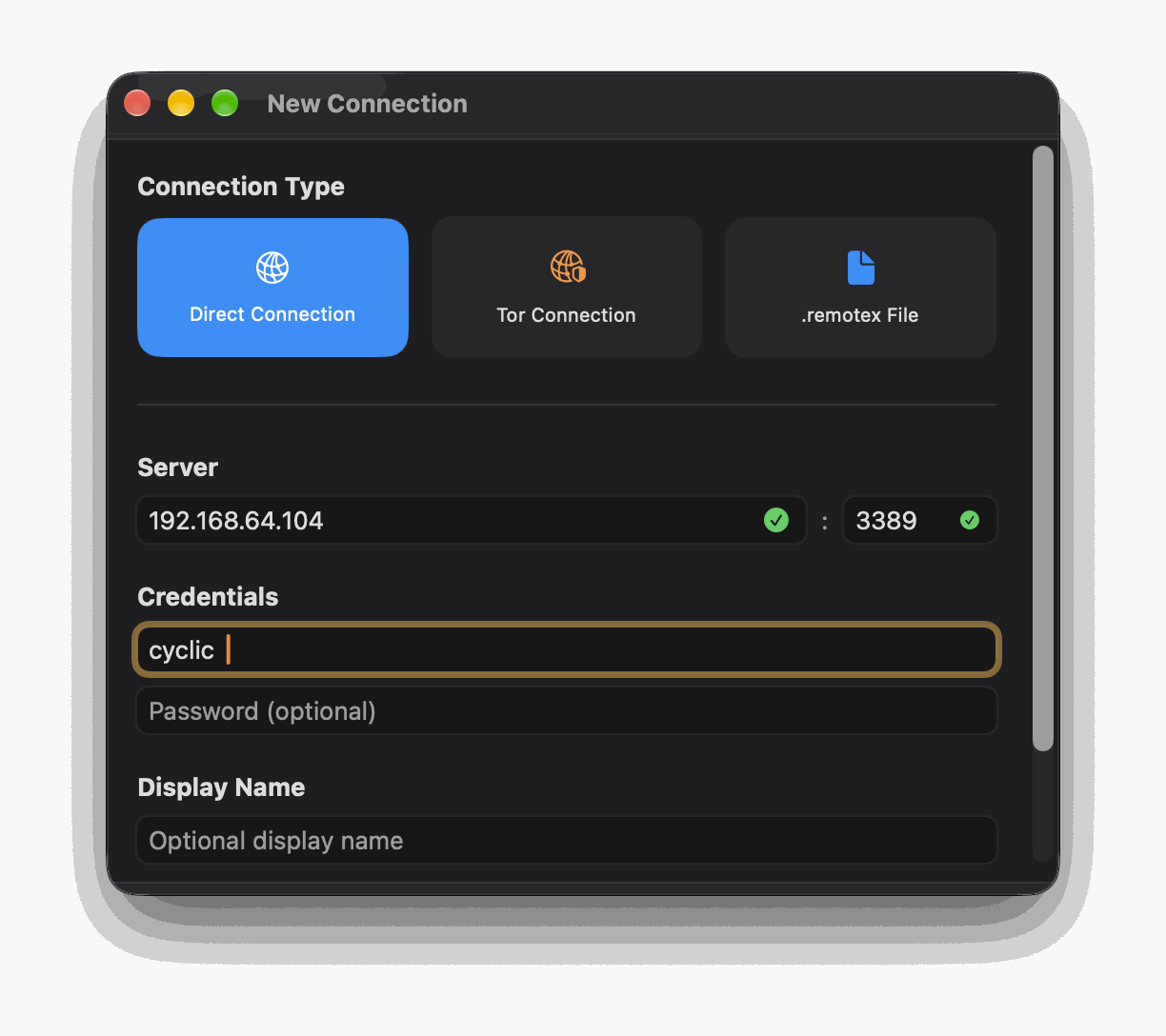
Let this Mac be the far end
Switch the server on from the menu bar and your Mac starts answering on port 3389 — the standard RDP port, so any client can reach it.
- Sign in with a real macOS account and password
- Works with Windows’ own Remote Desktop, and FreeRDP
- The menu bar shows who is connected, and disconnects them
- Off by default; nothing runs until you switch it on
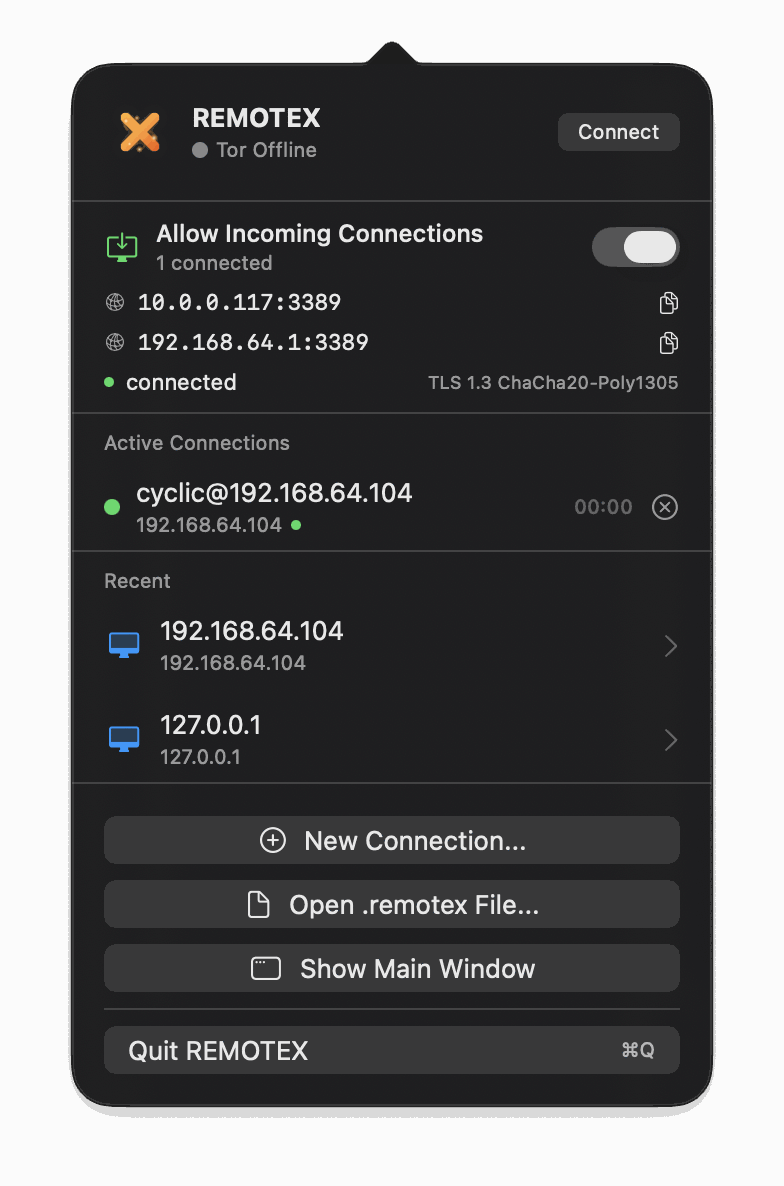
Encrypted, and nobody in the middle.
A remote desktop session carries everything you type, including the password you typed to start it. RemoteX treats that as the point, not a feature.
TLS 1.3, end to end
Every session is wrapped in TLS 1.3 with AES-GCM or ChaCha20-Poly1305 — the same record layer in both halves of the app, not RDP’s own legacy encryption.
Direct, not relayed
Your session goes straight from one machine to the other. No relay server in the middle, no account to create, and no company standing between the two ends.
A Tor option
Reach a machine at a v3 .onion address through a local Tor SOCKS5 proxy — for a host with no public address and no port to forward.
Permissions you can see
Hosting asks macOS for Screen Recording and Accessibility through the normal system prompts. Nothing is captured until you grant them, and revoking them stops it.
Sandboxed
The App Store build runs inside the macOS App Sandbox — both halves. Its files live in its own container and nowhere else on your disk.
No account, no telemetry
There is no sign-in, no licence check and no analytics. The app talks to the machines you point it at, and to nothing else.
Two minutes, and most of it is macOS asking permission.
-
Install it
From the Mac App Store, or open the .dmg and drag RemoteX to Applications. Launch it from there.
-
Connect out
Click New Connection, enter the other machine’s address and your username there, and connect. Tick Save to keep it in the sidebar.
-
Or turn on the server
Open the RemoteX menu bar item and switch on Allow Incoming Connections. macOS will ask for Screen Recording; grant it and the server starts itself.
-
Give out the address
The menu bar shows this Mac’s address. From the other machine, connect to it with any RDP client and sign in with a macOS account on this Mac.
The ones worth asking first.
Do I need RemoteX on both machines?
No. RemoteX speaks RDP, the protocol Windows has used for remote desktop for decades. It connects to anything that serves RDP, and anything that speaks RDP can connect to it — including Windows’ built-in Remote Desktop Connection and the open-source FreeRDP.
Is this screen sharing, or a separate login?
A separate login. You sign in with a macOS account on the far machine and get that account’s desktop. It is not a view of whatever someone is already doing in front of the screen.
Does it work over the internet, or only my own network?
Both, but a connection over the internet needs a route to the far machine — a forwarded port, a VPN, or Tailscale and the like. RemoteX does not relay through a server of ours, which is what makes it direct and also what means it cannot punch through your router for you. The Tor option is there for exactly this case: a host reachable at a .onion address needs no port forwarded at all.
Why does it want Screen Recording?
Only the hosting half does, and only when you switch it on. Sending your screen to another computer is screen recording as far as macOS is concerned, so the system insists you grant it by hand — there is no way for an app to be given it silently. Accessibility is asked for separately, and is what lets the remote keyboard and mouse actually do anything; without it you get a view you cannot click.
What is the difference between the App Store version and the download?
The same app. The App Store build runs inside the macOS App Sandbox and updates through the App Store; the direct download is signed with a Developer ID and notarised by Apple, and updates when you replace it. Pick whichever you prefer.
Does it cost anything?
Free. There is no subscription, no per-seat licence and no paid tier.
Can I host from an Intel Mac?
Connecting out works on any Mac running macOS 15 or later, Intel or Apple silicon. Hosting — letting others connect to this Mac — needs Apple silicon.
What it needs.
- Operating system
- macOS 15 Sequoia or later
- To connect out
- Any Mac — Apple silicon or Intel
- To host
- Apple silicon
- Protocol
- RDP over TLS 1.3 (AES-GCM or ChaCha20-Poly1305)
- Port when hosting
- 3389/tcp, the standard RDP port
- Permissions when hosting
- Screen Recording, and Accessibility for remote input
- Distribution
- Mac App Store, or a notarised disk image
- Price
- Free

Both halves. One app. No account.
Install it on the Macs you use, switch the server on where you need it, and connect.